

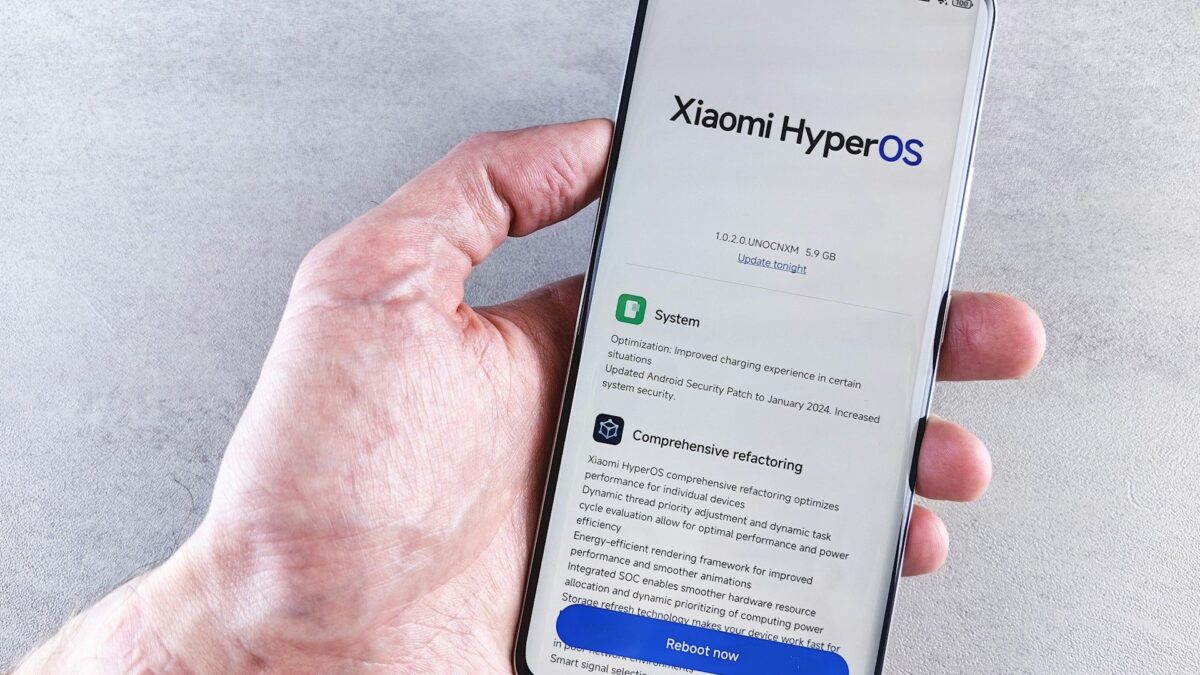
Android 17 landed on 16 June 2026, and it took three months to reach the phones most of us actually own.
For example Samsung began pushing One UI 9 to the Galaxy S26 series on 16 September, with the wider global rollout phased from 21 September and older models following into November.
If your phone has just restarted into something that looks slightly different, you might actually have been at the front of that queue and have gotten the update.
Some of what you are about to notice is cosmetic. Some of it will quietly break a thing you rely on every day, and one change in particular affects how you receive bank codes.
So here are seven things that may have changed on your phone, why each one happened, and what you can do about it.
1. Your bank OTP may stop filling itself in automatically
This is the change most likely to affect your daily life, and it is actually deliberate. Android 17 expands a protection that holds back SMS messages containing one-time passwords from apps that are not the intended recipient. Google’s behaviour changes documentation confirms the delay is three hours, during which the system withholds the SMS broadcast and filters database queries so the app simply cannot see the message.
Earlier versions applied this mainly to one specific message format. Android 17 extends it to WebOTP messages regardless of what version an app was built for, and to standard SMS for apps built against Android 17 itself. Google explained in its Android 17 beta announcement that the aim is to prevent OTP hijacking, so only the app tied to the domain in the message can read your code.
What you will notice is an app that used to grab your code by itself will now sit there waiting but your default messaging app, your assistant app and connected device companion apps are exempt, so the code still arrives in your inbox on time and you can read it and type it in. Nothing has been lost, and nothing has been stolen. If an app you trust keeps failing to detect codes weeks later, that app needs updating by its developer rather than you trying to fix it by yourself.
2. Apps suddenly ask for permission to see your local network
If a prompt appeared asking whether an app can find devices on your Wi-Fi, you should know that it’s a new feature as Android 17 introduces a runtime permission called ACCESS_LOCAL_NETWORK, and Google’s documentation for apps targeting Android 17 states that local network access is now blocked by default. It was optional in Android 16 and it is required now.
The reason for that is tracking, an app that can freely scan your network can build a fingerprint of your home from the devices on it, without you ever asking is to, so blocking that by default closes the gap.
You will surely encounter this one if you cast to a TV, print from your phone, or control anything over Wi-Fi very often, Those apps will either prompt you once or stop finding devices until you grant access. Say yes for the apps that genuinely need it, and treat a request from an app with no business on your network as worth declining. You can review every decision later under Settings > Apps > [app] > Permissions.
3. Apps can no longer help themselves to your whole contact list
Android 17 adds a system-level contacts picker, and Google described it in the Android 17 launch post as a way for apps to request temporary access to specific fields you choose rather than reading your entire address book through the old blanket permission.
In practice, an app that used to show all your contacts may now show you a picker and take only the two or three people you tap. That can look like a bug when an app that previously knew everybody suddenly knows almost nobody. It is working as designed, and it means a shopping app or a game no longer gets every number on your phone by itself.
For apps where you genuinely want full access, such as a backup tool or a second dialler, the old permission still exists and you can grant it under Settings > Apps > [app] > Permissions > Contacts. Everything else is recommended to be left on the picker.
4. Music or podcasts may stop playing when you leave the app
Android 17 tightens what apps can do with audio in the background. Google calls it background audio hardening, and the requirement is that an app playing or requesting audio while in the background must run a proper foreground service rather than starting playback casually from the background.
The intent is to stop apps making noise you did not ask for but the side effect is that a smaller music player, podcast app or Quran or gospel streaming app that has not been updated may cut out the moment you switch away from it.
Although you should try to update the app first, since most developers ship a fix quickly once their users complain. If it still stops, the app needs work from its developer and there is no setting on your side that can restore the old behaviour. Alternatively, downloading your audio and playing it in a better maintained music player is a practical workaround while you wait.
5. Settings you carefully chose have quietly gone back to default
Updates reset things, and you will not be told which ones. The usual suspects are battery optimisation settings for individual apps, your default browser or SMS app, animation scales if you had reduced them, and camera settings.
Camera is where most people notice first, because beauty mode and face retouch have a habit of switching themselves back on. That is why your selfies may suddenly look smoothed and Photo resolution can also drop back to a binned default without saying anything.
Try to spend two minutes or more and check four places on your phone’s camera after the update, Open your camera app settings and confirm resolution and any beauty or retouch sliders.
Check Settings > Apps > Default apps. Look at Settings > Apps > [app] > Battery for anything important that should read Optimised, and avoid Restricted for messaging and banking apps since that setting stops background jobs and delays notifications.
If you had also switched app updates to Wi-Fi only, confirm that survived the new update, because a reset there can cost you real money on mobile data. We covered that setting and where it hides in our guide on why your Android keeps updating apps on mobile data.
6. The phone is slower, warmer and drains battery faster than it used to
This one alarms people every single time and it is almost always temporary. A major update forces your phone to recompile the code for every app you have installed so each one runs properly on the new system, a job Android handles through a process called dex2oat. On a phone carrying plenty apps that runs for days, and the “optimising apps” screen you saw at first boot is only the opening stretch of it.
Your phone re-indexes storage so search and the gallery work again, rebuilds thumbnail caches for every photo you own, and the Play Store pushes a wave of app updates that each need compiling themselves. All of that competes with whatever you are trying to open, which is why the phone feels sluggish, and it keeps the processor awake, which is why it runs warm and eats battery.
Two to three days is normal, and up to a week is still reasonable on an older phone. Android usually schedules most of this work for when the device is idle and charging, so leaving it on charge overnight with the screen off will get you through it far faster instead of picking it up every ten minutes.
Keep at least 15 percent of your storage free while it works, since compilation needs somewhere to write. If it is still bad after two weeks, that is no longer normal, and our guides on post-update slowdown, post-update heating and battery life after an update take each one further.
7. Your photos may look different
Phone photography is mostly software focused, So every time you press the shutter, your phone captures several frames, merges them, then applies noise reduction, sharpening, colour mapping and skin tone adjustment before saving anything. Manufacturers often rewrite parts of that chain in updates, so the lens and sensor are identical while the recipe applied to what they capture is not.
A manufacturer might cut sharpening to make images look more natural, which reads as an improvement to one person and as flat and dull to another. Some of our nigerian users often notice it most in skin tones, since brands keep adjusting how they handle darker complexions.
Before you conclude anything sha, take the same shot in your normal camera app and then inside Instagram or WhatsApp. If only the second one looks poor, your camera is fine, because those apps use standard Android camera interfaces rather than your manufacturer’s full processing pipeline. Our breakdown of why camera quality changes after a software update covers how to tell retuning apart from an actual bug.
What to do in your first week on the new version
Complete this once, and you’ll have covered nearly everything on the list:
- Leave the phone on charge overnight, screen off, for two or three nights so the background work can finish.
- Open the Play Store, go to Manage apps and device, and update everything in one go rather than letting it trickle through.
- Check your camera settings for resolution and any beauty or retouch option that switched itself on.
- Check your default apps and your per-app battery settings, keeping anything that notifies you on Optimised.
- Confirm Play Store auto-updates are still set to Wi-Fi only.
- Free up storage if you are near full, which slows the whole settling process down.
- Type your OTP codes manually for now and stop waiting for apps to catch them.
It’s worth knowing that not every Android phone gets Android 17, many phones in Nigeria are still several versions behind. Tecno, Infinix and itel typically ship around two major OS upgrades, so if your phone shipped with Android 14 you may already be at the end of its road. In that case the update you just installed was a security patch rather than a version jump, and only items five, six and seven on this list apply to you.
This does mean you should avoid updating because security patches are the single most valuable thing your phone receives, and skipping them to dodge a few days of lag leaves you running software nobody is fixing any more.
